Auto-Pilot Tutorial!
Click here to
skip the short intro, and jump to the Tutorial.
First, a quick word about the tutorial, and the workshop! This is
a tutorial to support the HUGE Pentatonic Master Class Workshop. It
describes and details how to set up the whole workshop on Auto-Pilot!
So, for for those who don't want to do the workshop online - here's
a solution.
If you found this page, and didn't come here from the workshop,
and you REALLY want to be able to play those great SOLOS
you've heard your heros playing for YEARS . . .
Did you ever want to play a solo like this?
Well, it's included in this workshop!
And it's all 100% FREE!
The Pentatonic Master Class Workshop will get you there!
After reading this brief overview, head over to the workshop!
It's a 90-Day, step by step journey that covers it ALL!
Step by step, with audio backing tracks for every exercise.
Chord Changing Speed and Articulation! Lead and Soloing
Speed, Articulation, and over all Dexterity!
Sample Practice/Drill Backing Track SNIPS
You are going to actually learn solos, AND . . .
get good at playing them!
Head on over when you're ready!
The Pentatonic Master Class Workshop
The Tutorial!
1st step: Create a folder named Penta Workshop.
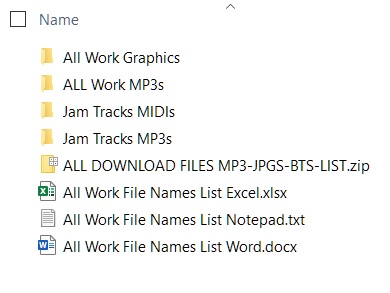
2nd step: Go to the Downloads page and download the files to that folder.
(Or to your downloads, then move them.) You'll need the "ALL Part 1 MP3 Tracks",
"ALL Part 2 MP3 Tracks" and "ALL Part 3 MP3 Tracks". AND the Graphics. OR ...
I personally recommend downloading them all. IF you plan to use the Jam
Tracks! If not, go to the Downloads page and get what you want. OR you can
click the link below and download EVERYTHING with one click! It's a large
file, so it will take ABOUT 4 minutes to download. BUT . . .
It's all organized! It will unzip in organized folders for you!
Click HERE to download EVERYTHING in one click . . .
Click Here All Files Download - Click Here
Go here to download only your choices.
3rd step: Proceed with the tutorial!
If you plan to play the Jam Tracks in iTunes (Why not!) I suggest loading them
into iTunes BEFORE you do the setup! Once they are in iTunes, make a Playlist
named something like Penta Jams. And copy/drag them all over to the
Playlist! I do NOT recommend loading the MIDI tracks into iTunes because it
uses a nasty SoundFont! Jam to the MP3 Jam Tracks!
Once you have the Jam Tracks in a Playlist, continue on . . .
If you want help setting up a Playlist, click here to auto jump down
to that part of the tutorial now. There's a link to click back to right here!
Jump to Playlist instructions HERE!
You now have a folder with only the MP3 drill tracks. None of the examples,
etc. And you have a folder with the pertinent graphics. Load the
whole MP3 folder into iTunes. (That's all I have in iTunes.)
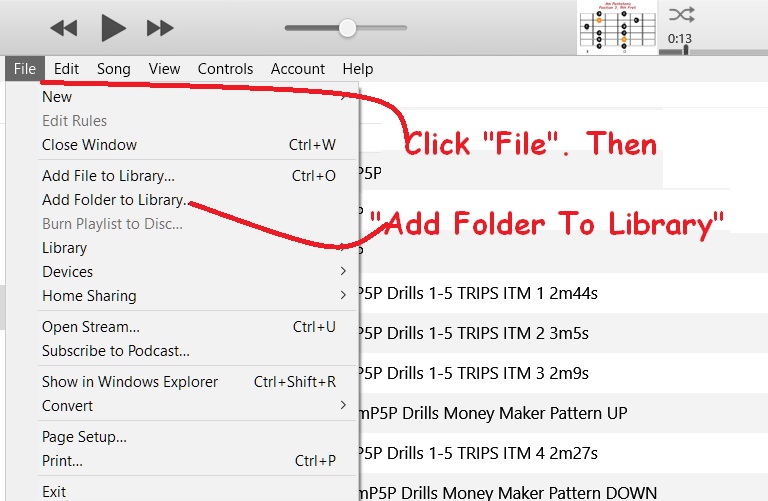
If you have other tunes in there already, once you load in all the files
using the Add Folder function, click on "Date Added" title. So they are
all together at the top. (You need to click it again if they went to the
bottom.) If you don't see a "Date Added" column, you'll need to add one.
Do it in the next step where you add a Genre column!
NOTE: I ONLY have the Penta tracks in iTunes! If you already have tunes
in iTunes, and want to keep this all separate, you'll need to open a 2nd
instance of iTunes for this. IE: another acct. (It's not hard to do.)
But you go through the same steps either way. And when you're done with
this setup, your workshop files will be separate from your other tunes.
So . . .
Add a Genre column, and label all Penta track with a common Genre
name. Maybe just "Penta". I named mine Penta Drills 1, 2 & 3.
Also select "Date Added" if you don't have that column!
NOTE: Tracks 1-6 Part 1 ~ 7-37 Part 2 ~ 38-83 Part 3. Tracks are
numbered in the titles. I suggest naming them with 3 names so later
you will easily be able to sort them by workshop "parts"! 1, 2 and 3!!
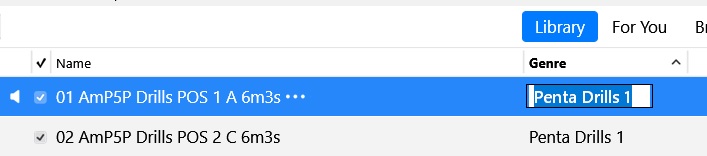
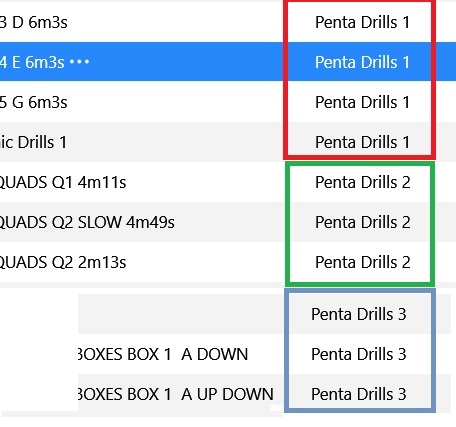
HINTS: You click in the row of the track number you want to edit with genre.
Once highlighted, click "approx." where the genre filed would be in that row,
IF they had the field marked in the tracks! Might take a couple tries to find it!
When the field opens, type in the name you want for that track. Let's say Part 1.
Or Penta P1, etc. Before you hit ENTER, or simply click off the track,
Do a Copy/Paste! Then when you do each of the others, you just click to open
the field, then right click, Paste!
When you do the 1st name, all you need to do is type in the 1st letter of the
name you chose. The rest of the name will pop up. Or just PASTE IT! SO . . .
When you get Part 1 done (6 tracks) the 1st Part 2 track, Do a PASTE. Then
change the Part 1 to . . . 2. Re-copy. You're good till you get to P3, 38.!
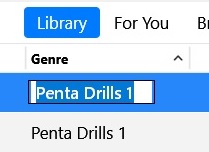
The reason you're doing this is to keep your workshop tracks separate,
and easy to set up, manipulate, if you already have tunes in iTunes!
Actually, even if you don't!
To get them to all play together on auto, you need to do this!
Then you can work off the new Genre category!
Genre will appear in your folders/playlists column!
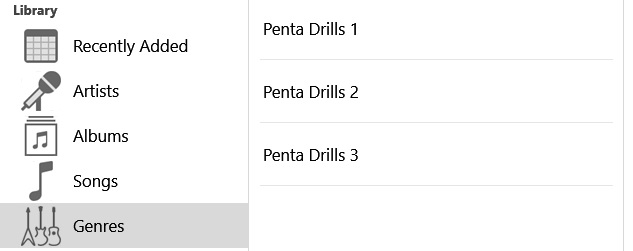
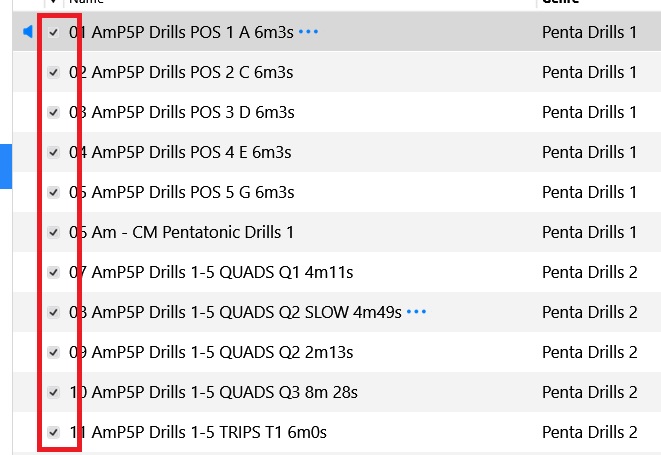
Go to the Genre list. Select Part 1. Click on any track. Hit "ctrl a" (select all)
then right click on the highlighted column, and select "check all"!
(press the ctrl key and hold it, and press the "a" key.
Now all tracks in Genre P1 are checked and will auto-play one after the other.
Do this for each Genre folder, Part 1, 2 and 3.
~~~~~~~~~~~~~~~~~~~~~~~~~~~~~~~~~~~~~~~~~~~~~~
This next part takes about 20 minutes, but well worth it! (5 minutes if
you only plan to work Part 1.)
You're almost done!
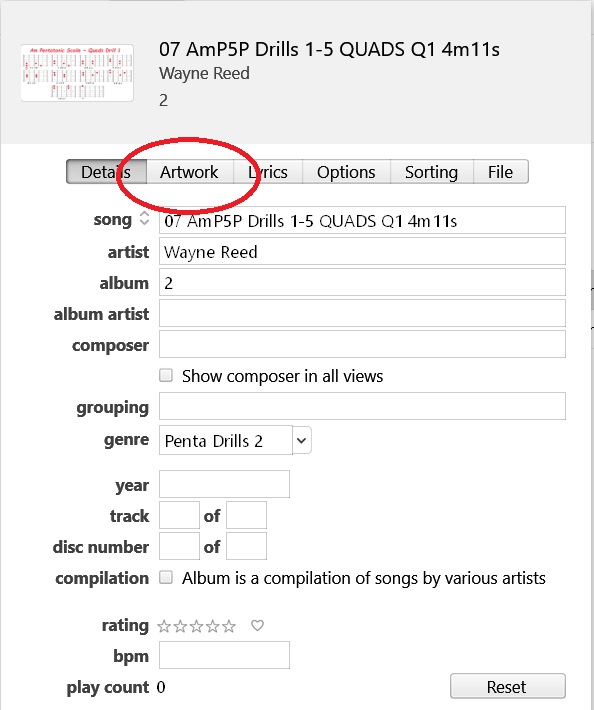
Select each track, one at a time. Right click on the file name. Select
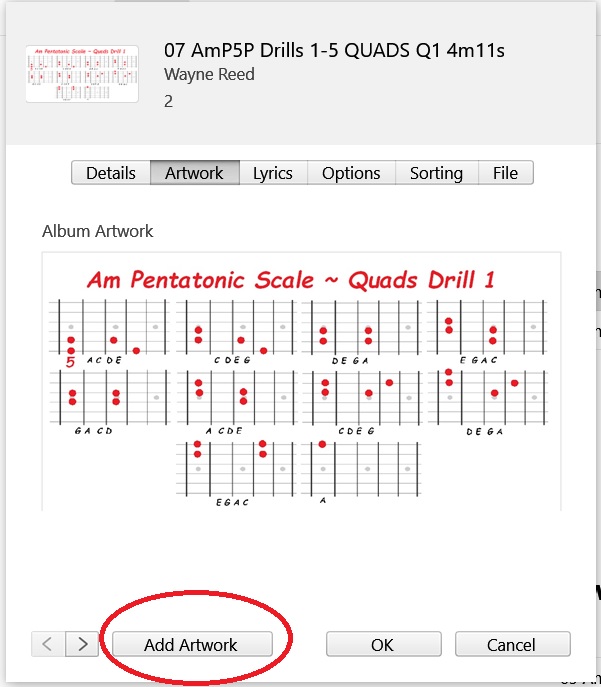
"Song Info". Click ARTWORK, top of window. Click Add Artwork. Click
over to the folder with the graphics. (You only need to do that part once.)
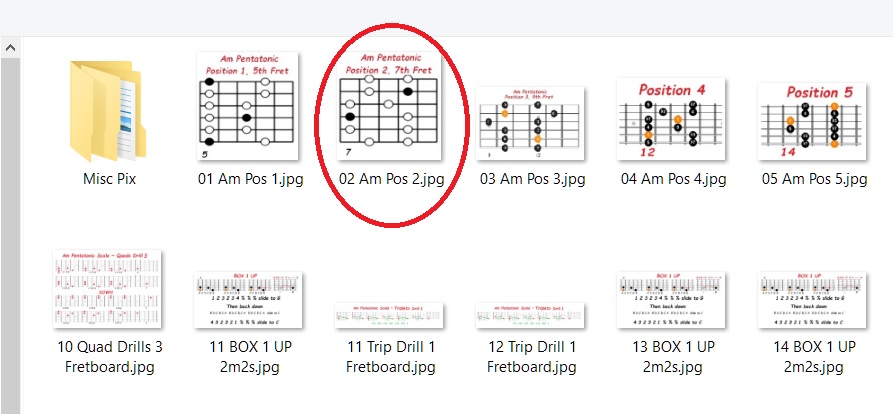
Select the graphic file that corresponds with the track number. IE:
06 Am - CM Pentatonic Drills 1 (MP3) with 06 Am CM Pentatonic.jpg
NOTE: Some MP3 tracks use the SAME graphic! That's why some graphic names
have a number "range". Like "44-50 The Goal 3-2.jpg" is used for tracks 44 to 50!
Also, it's the file name NUMBER you match up. The file name could be different.
46 AmP5P Drills SOLO DRILLS 3 BOXES BOX 2 A UP DOWN ~ 44-50 The Goal 3-2.jpg
Right click track name - Song Info
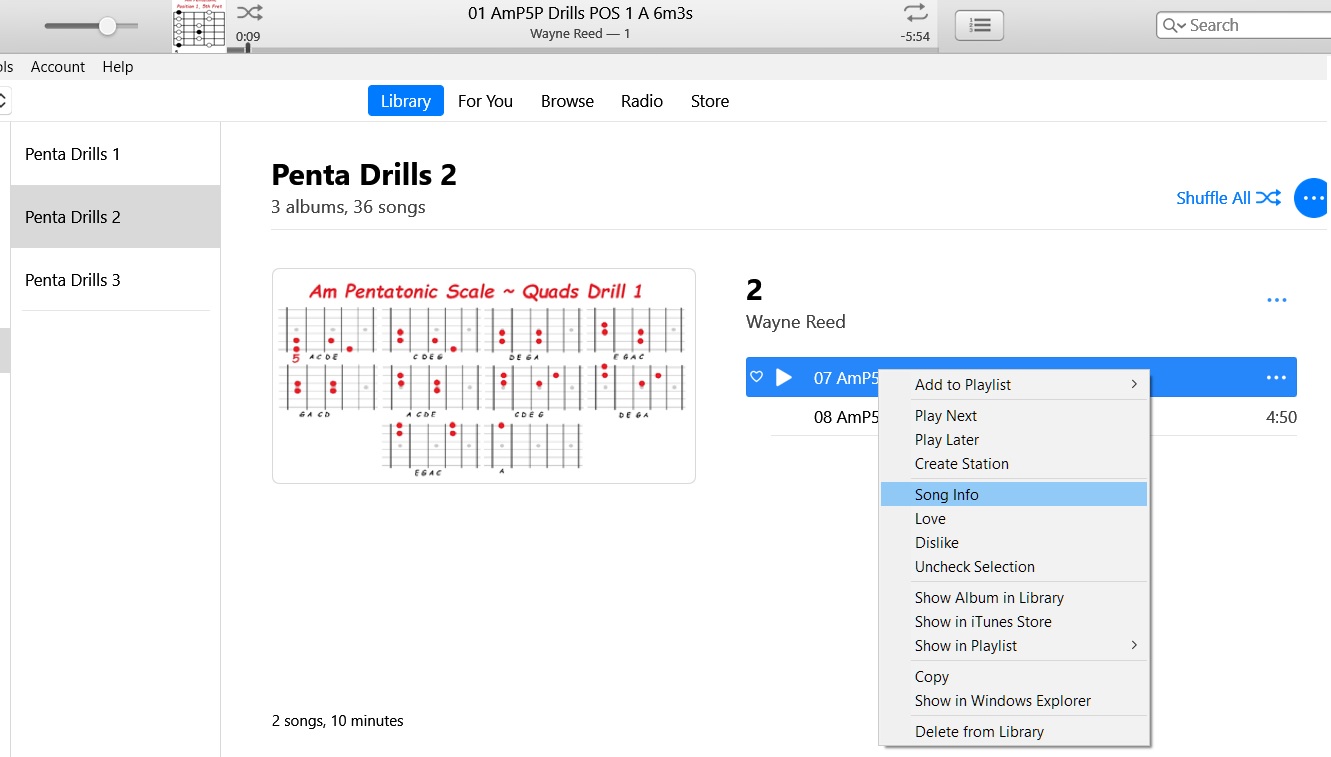
ARTWORK
ADD ARTWORK
Select graphic file
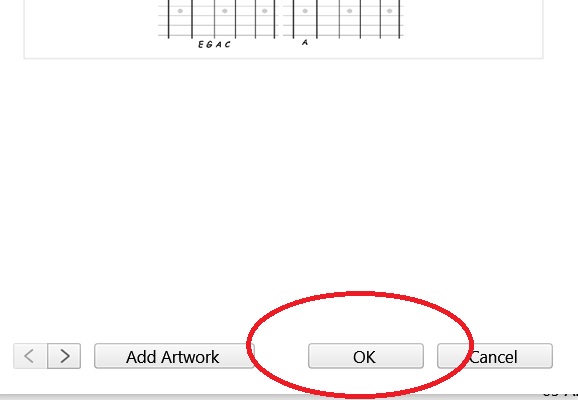
Hit "OK"
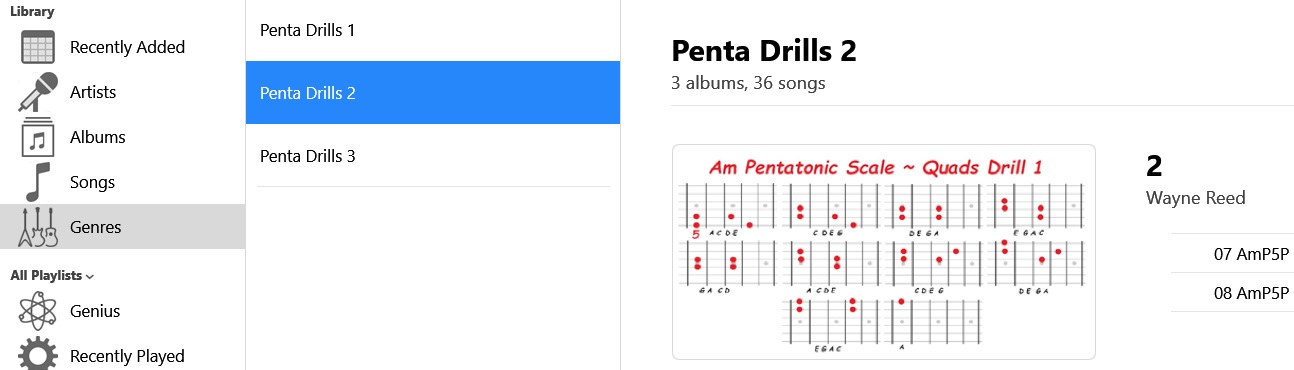
Now your tracks are all in the Genre section, in 3 lists. Part 1 - Part 3.
Each track has a graphic. In the Genre section, just select the Part you
want to work on. Ideally, every practice session, you start with a warm up
doing Part 1!
When you're ready to practice, double click the 1st track you plan to work on
that session. (It should be Track 1, Position 1!) Then click on the
little icon at the top, next to playing track window.
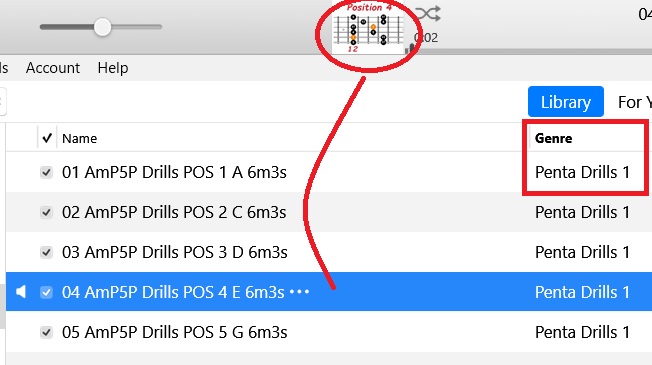
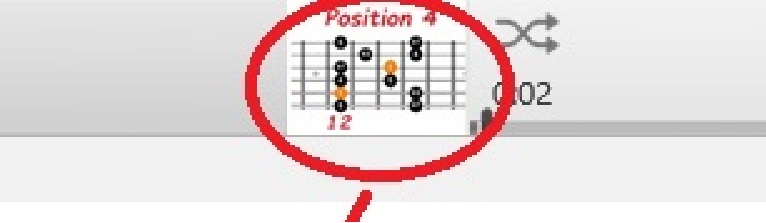
That opens a NEW window! And now all of the tracks you plan to work on
will show the graphic for each track! All on Auto-Pilot. No more clicking!
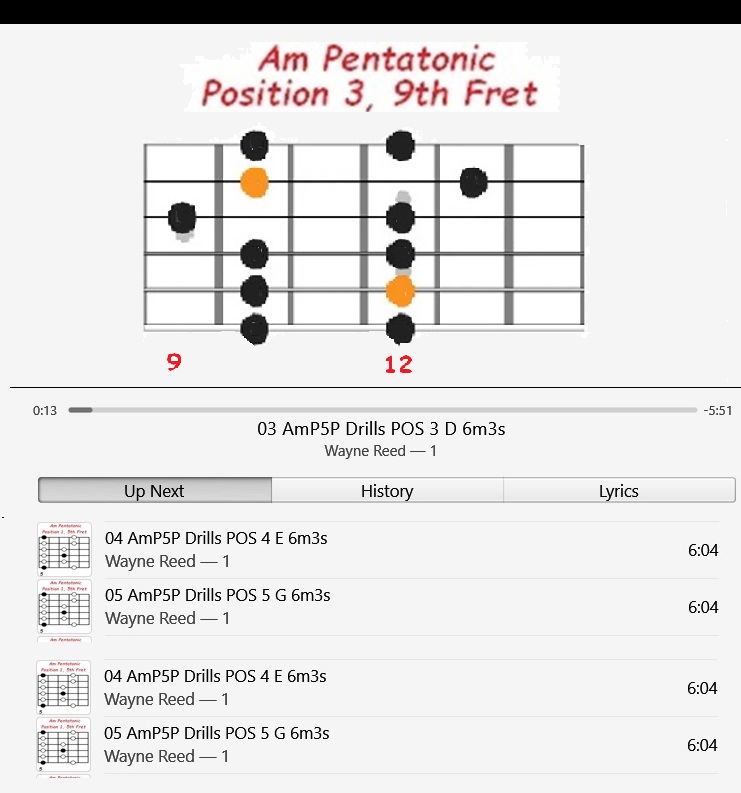
When a track finishes, it auto-jumps to the next track you have checked!
And the corresponding graphic will be there, too
When you mess up and want to start again, just click the track name again
and it will re-start from the beginning!
During the whole practice/workshop project, when you finish a specific track
that no longer needs to be worked on, like where there are 3 tracks, different
speeds for one topic, just un-click that track, and next practice session,
it won't play!
NOTE: When you want to play other tunes other than the workshop, if you have
them, click on the Genre title on main page. If your songs aren't on top,
hit Genre title again. BUT . . .
You can now add a genre category to ALL of your songs! OR make playlists
and copy all of your songs over to playlists.
Playlists!
Hope you found this interesting. If you did, please feel welcome
Please consider making a small donation to help us keep MidKar
~~~~~~~~~~~~~~~~~~~~~~~~~~~~~
I wouldn't add genre to your other songs personally. That will add more
genre links in the Genre section. I suggest making some playlists. If you
don't have a lot of songs, just make one. All you do then is click on the
playlist to play your other songs.
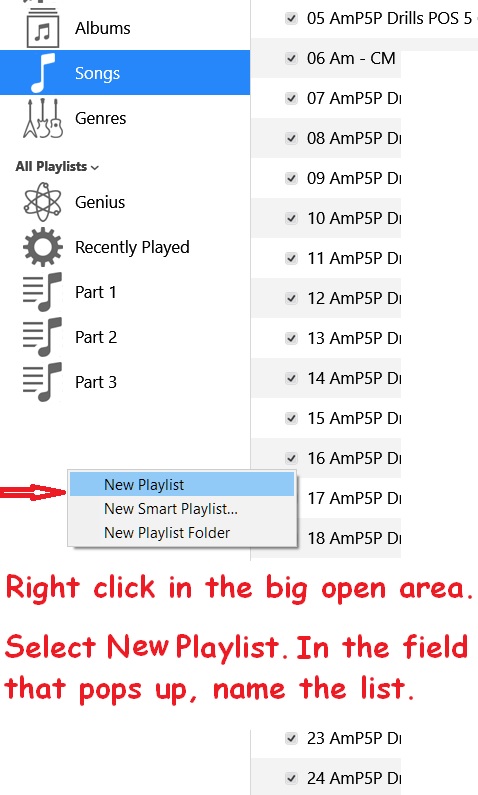
You can click on one, or highlight any number of your songs, left click and
hold, then drag them over to a playlist. Or highlight them, right click in
the highlighted area, and select "copy to Playlist".
BINGO! They will still be in your main list, but in the Playlists, you can
sort them how ever you want. And no hunting or scrolling through a HUGE list!
Jump back up to the place you left off if you jumped to Playlist.
I hope you're enjoying the workshop, and your daily improvements! Wayne
The Pentatonic Master Class Workshop INDEX
Contact me any time!
Got a question? Ask me! Or request a workshop topic!
Email me any time! ~/~
Wayne on Facebook
Be sure to bookmark the workshop pages of personal interest.
to drop me a line. Email me, or drop me a PM on Facebook!
Check out my Musicians and Performers Support Group
I Just Wanna Play The Darn Thing!
The MidKar Website has 250+ pages! With over 43,813 FREE
bacing tracks! SoundFont, MIDI editors and players and
more! All FREELY distributed!
Please Visit The MidKar Main Portal HOME Page
MidKar Portal Home Page

online. MidKar relies on your help because we are not monetized!
Membership, and all of the MIDIs, KARs and BIAB files, and ALL
of the Tutorials and Workshops are FREE!
Thank you for your support! Wayne
Click the PayPal link if you'd like to help!