
Welcome to my corner!
And welcome to . . .
Sequencing 101: Phase 2
Hands-On lesson: Let's get organized! (PC or Mac)
Editors used:
Anvil Studio, PowerTracks Pro Audio,
Acoustica Mixcraft, Mac GarageBand
I really don't like editing a MIDI file that's not arranged and/or
organized properly. It's too confusing. Leads to mistakes. And
can add a lot of time to your editing project.
So at least ONCE you're going to organize a messed up MIDI file
before going on to do the edits you already planned to do. We're
going to take this messed up MIDI and take a few minutes to
organize it all. You'll understand exactly what I mean very shortly.
So let's take a look at this MIDI file. We're going to focus on just the
left hand side tracks editor. Just getting it organized is going to teach
you a bunch of cool stuff you need to know anyway. So you should
always do this. But like everything else . . . it's up to you.


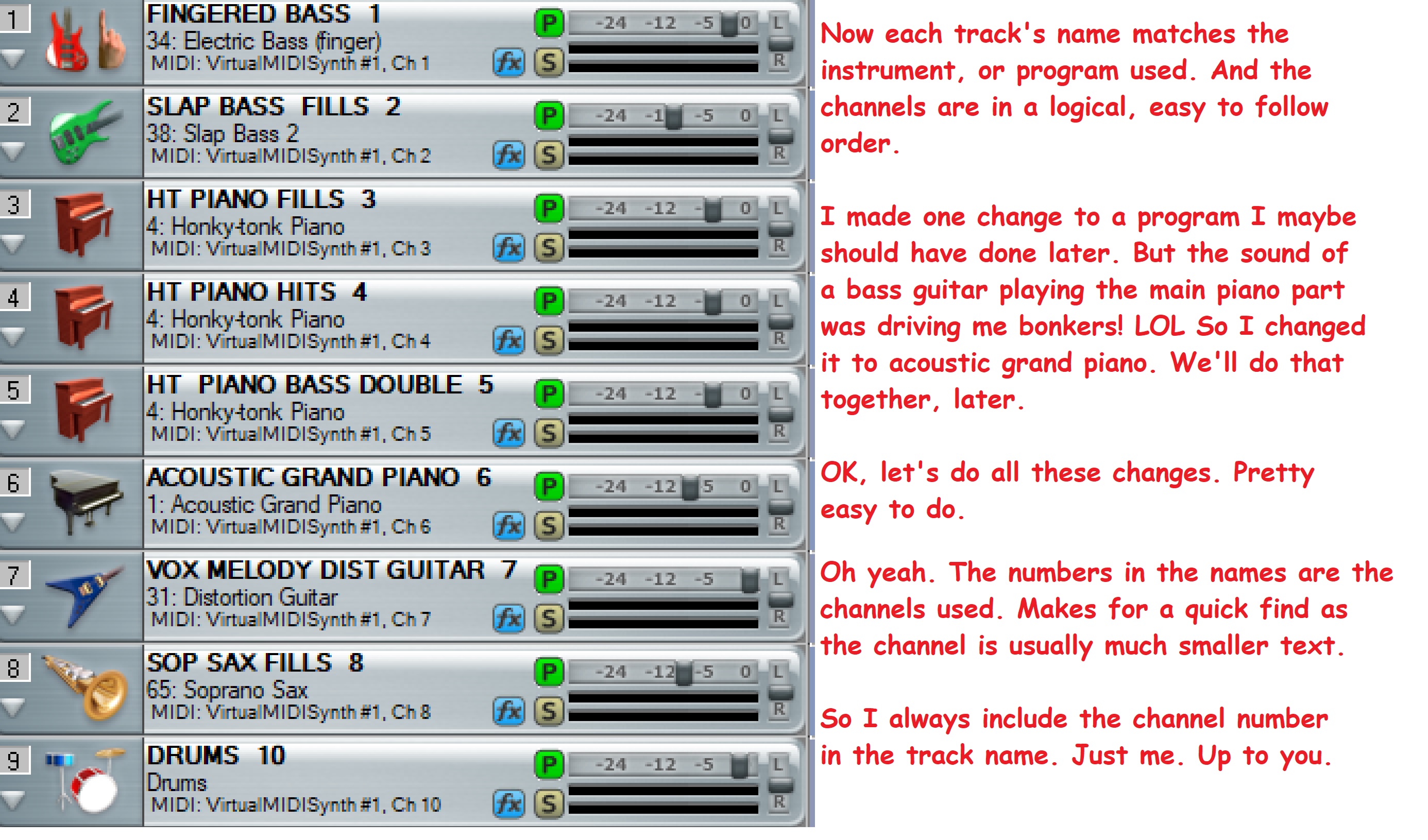
OK, so how do we do all of this. EZ if we go a step at a time.
Track names: I'm only going to use one MIDI editor to show you
these edits because you do them the same way in any editor I've
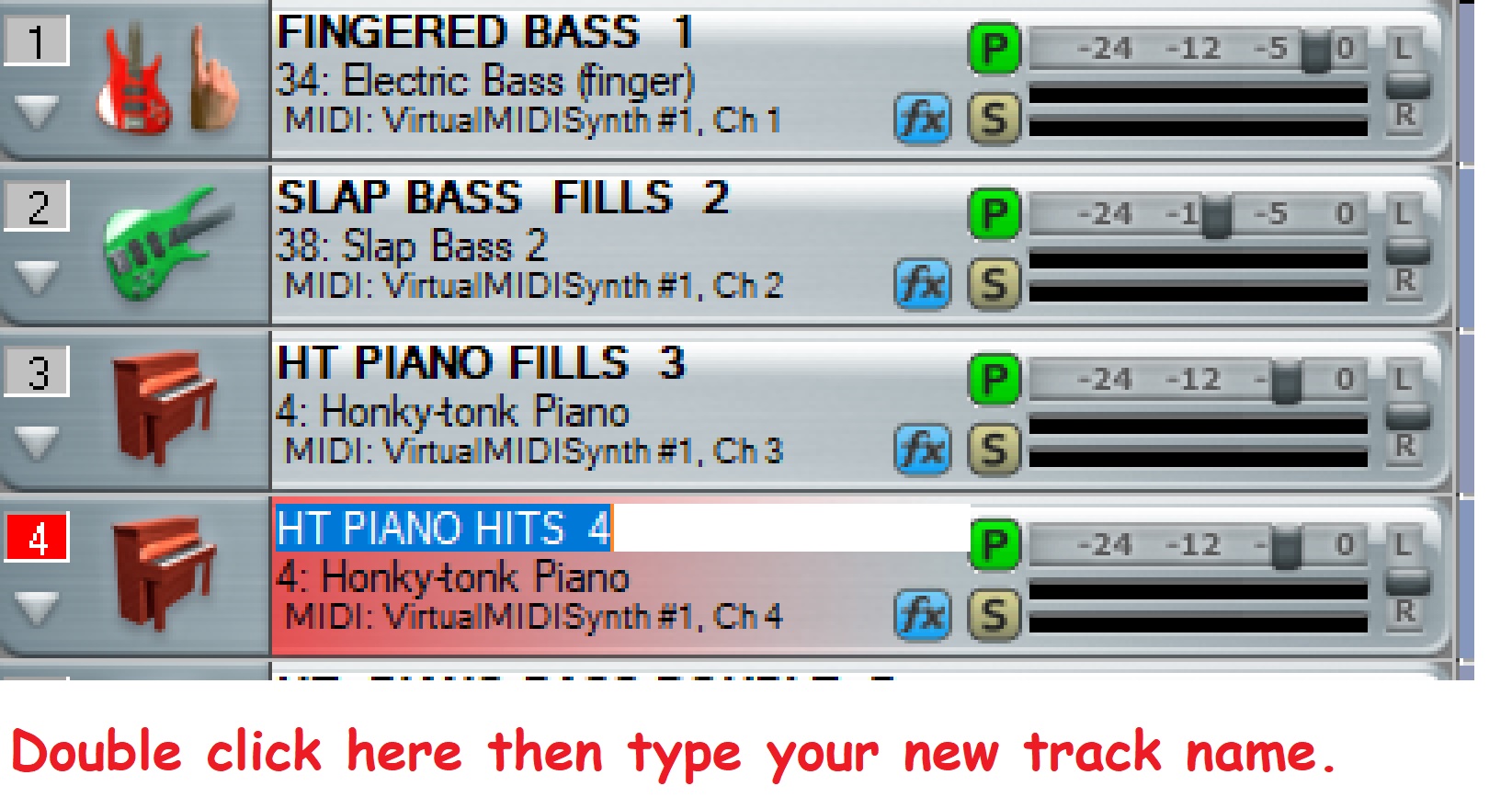
ever seen. The name field is a text editor field. Double click in the
field. Highlight the old name. Type the name you want. DONE.
I will note, as I recall, in GarageBand, you click on the name, and HOLD
for a second. Then the field will change so you can type in the field.
Track channels: OK let's talk about channels. A lot of people get
channels mixed up with tracks. Above are 4 “tracks”. You record
or put MIDI “notes” on tracks. You play tracks. Depending on your
software, you have anywhere from a couple dozen available tracks,
to 'no limit'. The software not limiting the number of tracks. It just
depends on your PC. How much RAM you have.
But channels? There are only 16. ONLY 16! To keep it simple, know that
there are ways around that. But in basic MIDI – there are only 16 channels.
A channel is what contains all of your MIDI data. Not the 'notes'
so much. But stuff like what instrument will play on the track?
How loud will the notes, or the track be? How hard or soft will you
play the notes? What effects will you use. How much of the effects
will you use. Like Reverb. Will you use it? How much will you use?
Will the notes in this track ring out a while after they plays. Or will they
quickly fade out after playing. Will the notes play on the left, in
the middle, or on the right? As in, is it a stereo MIDI? If so, what
plays on the left, what plays on the right?
We put all of this information in a list called an EVENT List. Each
of those things above is an event. Pan left is an event. Pan right
is, too. Volume is an event. Reverb is an event. It's ALL events.
So you control each track by setting the events in the channel you
selected to use for that track.
NOTE: You edit the channel, not the track. If you set channel 1 to be
panned hard left, for example, any other tracks that you set to channel
1 will be panned far left. More on this in a bit. It also depends how and
where EVENTS are set up.
Here’s how I like to explain channels. I have a huge Sun Coliseum amp
with a couple 15" speakers. All the EQs are geared for Bass guitar. Low
Boost, Low, Low/Mid Boost, etc. My Sun amp is named 'Channel 16'.
And I have a Fender Twin Reverb sitting next to the Sun bass amp.
The Twin is all midrange. With reverb and tremolo. Lots of high and
mid EQ. 2 12" speakers. I have the reverb cranked a bit high. My Twin
is named 'Channel 15'.
And then there's our PA and the mixer with another 14 'channels'.
Each with a slider, and its own volume, reverb, EQ, etc.
That's 16 channels I can plug stuff into, right?
I have some tracks made. A bass guitar, trombone, brass, a couple trumpets. A B3
organ and a grand piano. A couple saxes and a flute. And some strings.
Picture a large band on stage with these exact same instruments.
What amp do I want to plug each of these into? Obviously the bass guitar track
will go to the bass amp, right. Probably the trombone too. And a bari sax if I had
one. The guitar is going into channel 15, my Twin. The others will go into the mixer.
And I can set each channel on the mixer differently. Right? Move the slider up on
channel 1 down on channel two. 3 & 4 might have strings. But the higher timbre
strings will have some reverb. The lower, slow strings will have NO reverb.
And so on.
THAT . . . is like assigning channels to tracks.

OK, so now we want to organize our tracks so there's a logical order to
follow with our channels. We need to make some decisions. If we're
in MONO, and staying in MONO, we want all tracks/channels to be panned
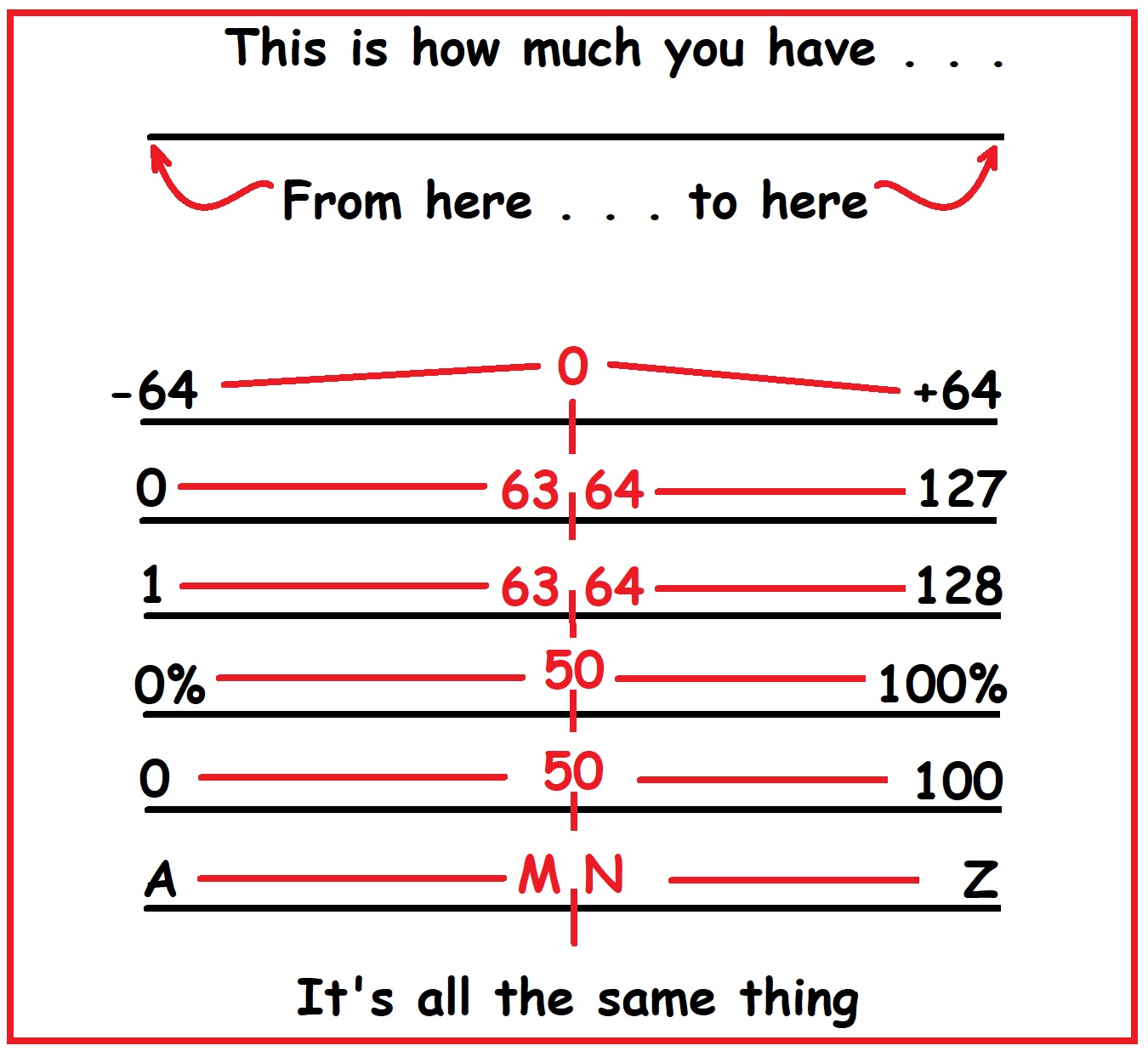
dead center. Which is a value of ZERO, or can be 50%. Also can be 64. Depends
how your editor works. 50% is in the middle if your editor uses percentage.
Computers use numbers 0 through 127, or 1 through 128. Depends on the computer.
So 64 is right in the middle. If your editor uses 0 to 100, kinda like percentages, right?
Then 50 is right in the middle. Unless the editor uses -64 as left and +64 as right. In that
case the middle would be ZERO. Don't let this confuse you. It's not rocket science. It'll
make sense once you do it a time or two.
Here's a Stage Plot with Spatial Panning chart. I'll do a tutorial on this soon. But
to those who have a stereo set up, here's how I pan all the instruments in a stereo mix.

So now, do we want MONO or STEREO? For this tutorial we're going MONO.
OK, let's assign some channels. That's way easy. If your channel is in a field,
just do what you do for any text field. Click/highlight/type. If it's an icon, click
it and you'll get a menu. But you're gonna click on it one way or the other.
Also, for those just getting into computers, remember this . . .
Left click = menu Right click = select And usually Double Click also = menu.
When in doubt, DO SOMETHING! Guess! Click on stuff. Get a menu and see if it
makes any sense.
So let's change some channel assignments. We'll start with PT.
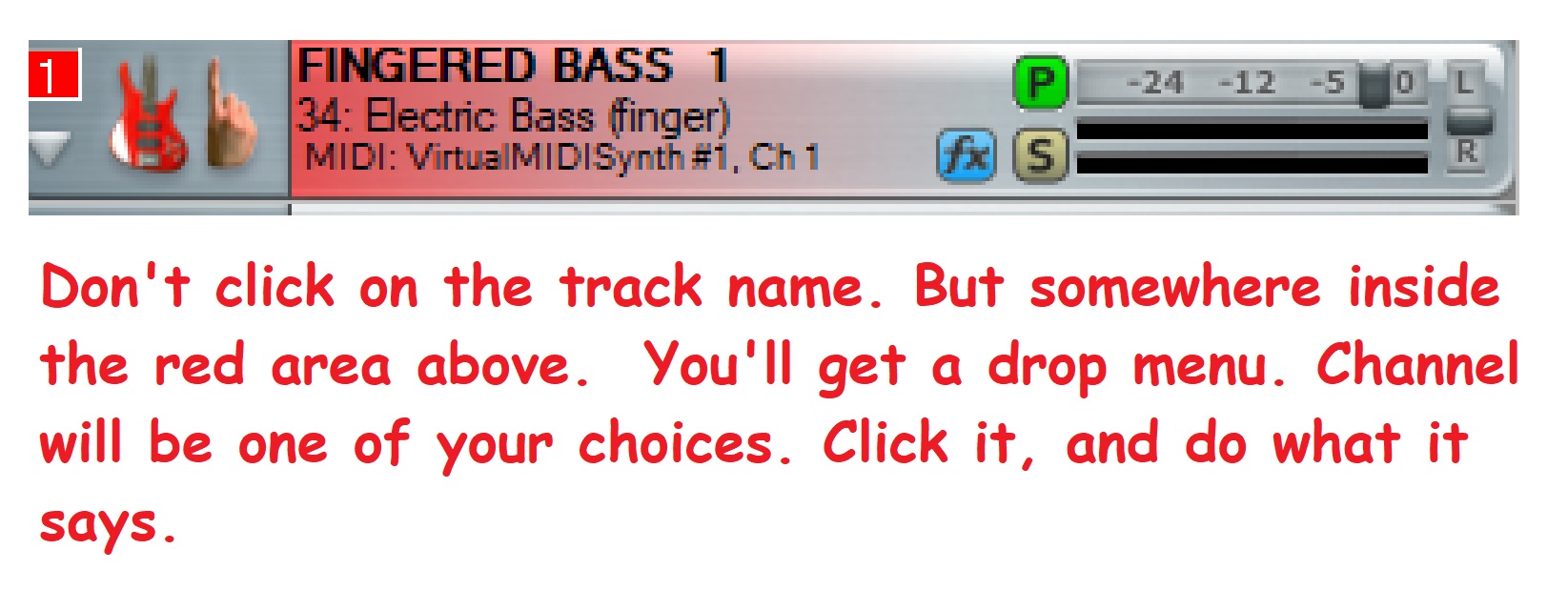
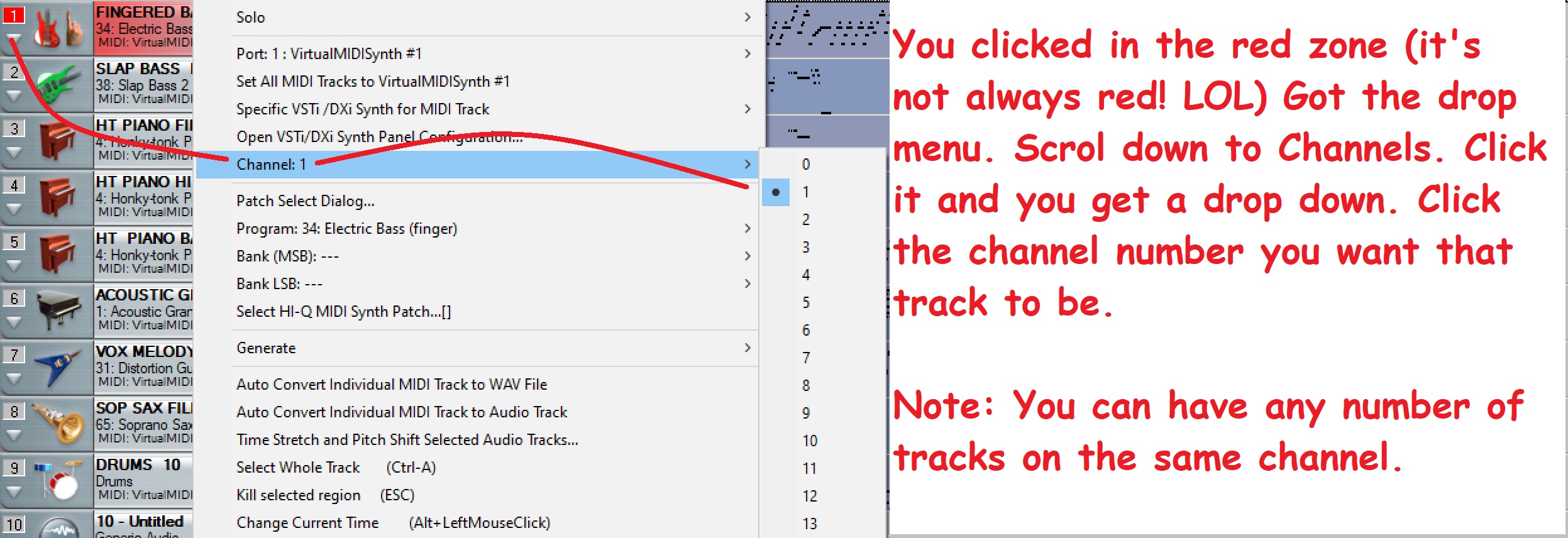
AS is really easy!

Click the track name. Type in the new name.
Click on the channel number you want to change.
Click on the channel you want.
NOTE: For reasons we'll go over another time, drums are
always on channel 10. Period. End of discussion. Drums = 10.
MC is the easiest. Same procedure to change the name. Click
and type. But here's the really cool part. NO CHANNELS! MC
uses a different platform, and isn't restricted to channels.
That means you can have one drum, let's say the snare, on
one track, and the kick on another track. Both are drums,
and would each be on channel 10 in the other editors. But
in MC, no channels. So I can add reverb on the snare and
pan it slightly to the right. Pan the kick to the center with
no reverb. Add a couple toms on a couple tracks and pan
them each slightly off center. One a bit left, one a bit right.
Add a splash on the far left and a crash far right. You now
have movement in your tracks. Spatial Editing.
Of course this is only for stereo MIDIs.
So . . . with MC just rename, and you're done.
It's even WAY EASIER to assign channels in GarageBand. All you do is . . .
Oh, yeah! You CAN'T! HA! GarageBand doesn't use "midi" channels. Channels
are something very different in Mac editors.
Oh, and you can easily move your tracks around. Just click and hold, and drag your
tracks up or down to put them in the order you want. There are also commands,
tools to use to move your tracks. But dragging them is pretty easy.
OK, now admit it. That was all pretty easy! The actual editing was easy I mean.
But as you are finding out, there’s more to making a great MIDI than clicking
fields and icons. There is a learning curve. Like for channels. But a step at a time!
In the next phase, we’ll start looking at Events. How to shape your tracks. Get
them to sound how you want them.
See you after break.
See you in Phase 3!
Phase 3
Click here to continue on your journey to becoming a better sequencer!
Click to go back to the main Tutorials and Workshops Directory
Tutorials and Workshops Directory
Wayne (Reed) Knazek ~ Email Me Here! ~ My personal Web site
Join WC's Support Group Forum
My MidKar site has 43,813 FREE Backing Tracks
MIDI Files, KARS and BIAB files PLUS 23 User Styles. 260+ pages!
Please help keep us online with a small donation!
This site is free for all. The tutorials, workshops. 43,813 MIDI, KAR &
BIAB backing tracks files, 23 BIAB User Styles. A FREE SoundFont,
Timbres of Heaven. Free MIDI players and editor!
The fees for a site this large (Nearly 200 pages with over 50K files)
is pretty high, as you can imagine.
Please consider making a small donation to help keep us online. It
would help so much! Thanks! Wayne
PS: I pay for the site and all hosting, security and domain related
expenses out of pocket. Donations appreciated. Please click the link below.